Edge Blending: Achieving Seamless Overlap Between Projectors

Edge Blending: Achieving Seamless Overlap Between Projectors
In short. Edge blending is the technique that merges multiple images projected by adjacent projectors into a single large continuous image, without a visible seam. Three parameters drive the quality of the result: the overlap zone (10 to 25 percent of each projector's width, depending on surface complexity), the blend curve (gamma ramp applied to luminance in the overlap zone), and the black level adjustment (compensation for the black that turns gray in the overlap zone, due to double exposure). Success also relies on color calibration (each projector must produce the same white balance and luminance) and on sub-pixel geometric alignment via warping. Professional media servers (Modulo, Watchout, Disguise) include these adjustments, but fine tuning demands a trained eye and a dedicated test pattern.
Introduction
As soon as you move to two or more projectors, blending becomes your primary concern. It's the overlap zone between the images that makes all the difference between a professional result and a visible patch job.
Poorly managed, the seam is obvious: a bright band in the middle, color mismatches, harsh transitions. Well managed, it's invisible. The audience doesn't even know they're looking at multiple projectors.
In 15 years of multi-projector projects, from the Arc de Triomphe to Culturespaces immersive centers, I've seen just about every blending mistake there is. This article sums up what I've learned in the field.
What is edge blending?
Edge blending is the technique that fuses the edges of two side-by-side projected images to create a continuous, uniform picture.
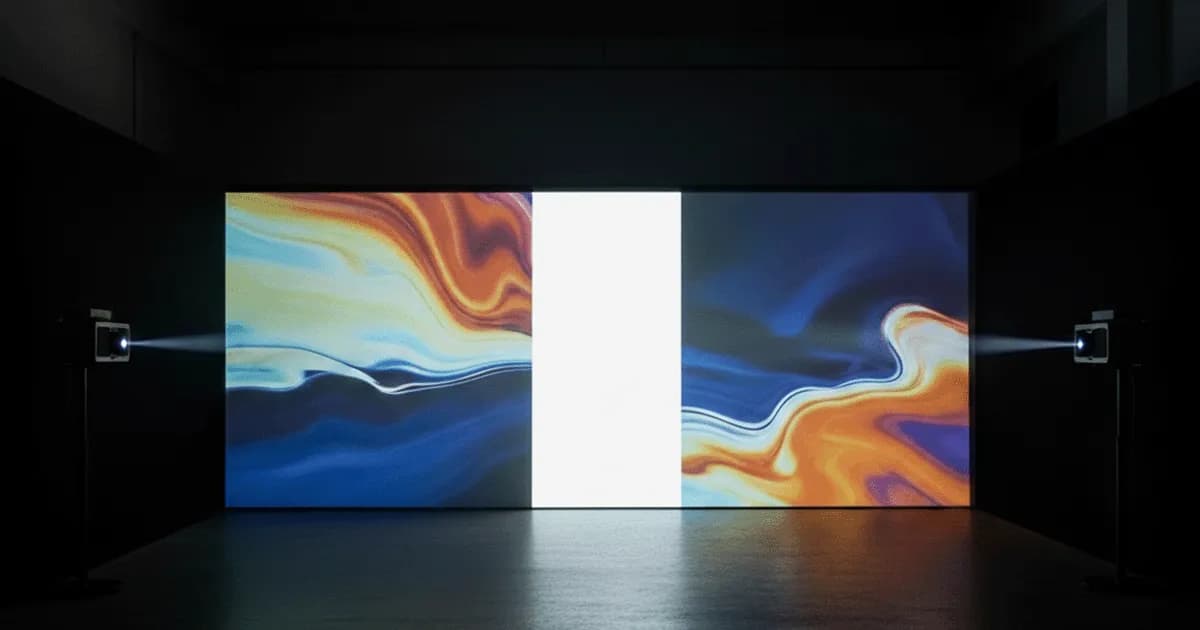
The principle is simple: two projectors display images that overlap on a band (the overlap zone). Within this zone, each projector gradually reduces its brightness. The left projector fades toward the right, the right one fades toward the left. The result: a smooth transition with no visible seam.
Without blending: the overlap zone receives light from both projectors. It's therefore twice as bright as the rest. The white band is immediately visible.
With blending: the attenuation curves compensate exactly for the overlap. Brightness is uniform across the entire surface.
This is a mandatory step for any multi-projector installation: monumental mapping, immersive spaces, large-scale events, scenography.
The Parameters That Matter
Overlap zone size
This is the first parameter to define: what proportion of each projector's image is devoted to the overlap?
The rule: aim for 10 to 20% of the image width per projector.
- 10%: minimum viable. The blend is tight, little margin for alignment error. Suitable for well-controlled installations with stable projectors
- 15%: the standard in live events. Good compromise between transition quality and resolution loss
- 20% and above: comfortable, very smooth transition. Essential if your projectors aren't perfectly stable or if the surface isn't flat
Note: the wider the overlap, the more "useful" resolution you lose. It's a trade-off between blend quality and final canvas resolution.
Calculate your overlaps: The multi-projector calculator automatically determines the total resolution of your canvas accounting for overlap zones.
Blend curve
How brightness decreases in the overlap zone has a direct impact on the result.
Linear: brightness drops at a constant rate from one edge to the other. Simple, but rarely optimal. The seam can look a bit "hard" at the center of the zone.
Gamma (power): a more gradual curve, with a softer transition at the center. This is the standard on most media servers and professional projectors.
Sigma (S-curve): slow transition at the extremes, fast at the center. Produces the most natural-looking result. Favor this curve when your software supports it.
In practice: the difference between gamma and sigma is subtle. The most important thing is to avoid pure linear, which produces a mediocre result.
Brightness uniformity
Even with a perfect blend curve, two problems often persist.
Black level: when a projector displays black, it actually projects a very dark gray. In the overlap zone, this gray adds up. Result: the blend zone is slightly brighter than the rest, even on dark content.
The solution: black level compensation (or "black level lift"). The media server or blending processor raises the black level of the non-blended zones to even things out. Most professional tools offer this feature.
Brightness matching: same model, same settings, two projectors never have exactly the same brightness. A 5 to 10% difference is common, even on brand-new equipment.
The solution: manually adjust the brightness of each projector to harmonize them. Some media servers allow fine-grained zone-by-zone adjustment.
Geometric alignment
Blending only works if the images are perfectly aligned geometrically in the overlap zone.
The absolute rule: warping must be done BEFORE activating blending. If you blend misaligned images, you'll get a blurry or doubled zone.
This is the number one mistake. And it's very common.
The surface matters a lot. In video mapping on historic architecture (stone, brick, relief), the surface texture naturally masks small alignment imperfections. You can sometimes get away with narrower overlaps and looser alignment tolerances, because the relief and material absorb the imperfections. On the other hand, on a projection cyclorama or a perfectly smooth white wall, every pixel of misalignment shows. The slightest imprecision jumps out. The more uniform the surface, the more flawless the alignment must be.
The blend between two projectors does help mask a slight alignment offset, that's true. But there's a limit. If the matrices aren't properly calibrated, the blur in the overlap zone will be visible regardless of the blend curve settings.
Common Mistakes
Overlap zone too narrow
With 5% overlap, the transition is too fast to hide imperfections. The slightest alignment or brightness flaw shows. And there's zero margin for error.
Go to at least 15% for live events. You'll lose a bit of resolution, but the result will be incomparably better.
Overlap zone too wide
Conversely, an overlap of 30% or more wastes resolution for a marginal visual gain. You're using nearly a third of each projector just for the transition zone.
Stay in the 10-20% range. Beyond that, the resolution cost is only justified on very irregular surfaces.
Blending without black correction
This is the classic trap. You activate blending, the result looks fine on bright content. Then you play dark content or fade to black: the blend band appears, brighter than the rest of the image.
Never skip black level compensation. It's the difference between "decent" blending and invisible blending.
Blending before warping
If you activate blending on images that aren't yet aligned, you'll never get a good result. The blend will "average" two misaligned images, producing blur in the seam zone.
The order is non-negotiable: physical alignment, warping, then blending. This is a mistake I also cover in detail in the article on calibration mistakes.
Not matching colors between projectors
Same series, same batch: two projectors will have colorimetry differences. In solo projection, it's fine. In multi-projector setups with blending, the overlap zone reveals these discrepancies.
Before blending, calibrate the colorimetry of all your projectors to a common reference. The color matching tools built into high-end projectors or media servers make this step easier.
Software vs Hardware Blending
Blending in the media server
The majority of projects use software blending, built into the media server (Modulo Kinetic, Resolume Arena, Disguise, Watchout...).
Advantages:
- Full control over curves, black level, colorimetry
- Real-time adjustment, even during the show
- No additional hardware
Disadvantages:
- Consumes GPU resources (especially with many outputs)
- Depends on the software quality
My take: this is the most common and most flexible solution. On 90% of projects, it's the right choice.
Built-in projector blending
Some professional projectors include blending functions directly in their firmware.
Advantages:
- Independent of the media server
- No additional latency
- Simpler for fixed installations
Disadvantages:
- Less flexibility (limited curves, no advanced black level compensation)
- Configuration via projector menus (less ergonomic)
- Works mainly for simple setups (2-3 projectors in a row)
My take: useful for simple permanent installations. As soon as the project gets more complex, switch to media server blending.
Dedicated blending processors
For large installations, specialized hardware processors (Analog Way, Barco, Christie) handle blending across many outputs.
My take: reserved for large-scale projects or broadcast setups. The cost is high, but reliability and performance are there.
My Method for Successful Blending
Here's the order I follow on every multi-projector project, from start to finish.
1. Calculate overlaps in advance
Before even installing anything, I size the configuration: number of projectors, overlap sizes, total canvas resolution.
The multi-projector calculator does this work. It accounts for overlaps to give the actual canvas resolution and generates the corresponding calibration test patterns.
2. Install and physically align
Once on site:
- Physical positioning of projectors
- Optical adjustments (focus, zoom, lens shift)
- Verify that overlap zones are correctly overlapping
Key point: let the projectors warm up for 20-30 minutes before moving on. Alignment shifts during the warm-up phase.
3. Warping
Calibrate each projector independently, starting with the broad strokes (2x2 grid) then refining. The goal: images geometrically aligned in the overlap zone, pixel-perfect.
Verify with alignment test patterns: straight lines, grids, geometric patterns. What needs to line up must line up perfectly.
4. Black level and brightness matching
Before activating blending:
- Display a full black image
- Visually check uniformity between projectors
- Enable black level compensation
- Adjust each projector's brightness to match
5. Activate blending
Only now, activate the blend curves:
- Set the blend zone size (it must match your physical overlap)
- Choose your curve (gamma or sigma preferred)
- Fine-tune visually with solid colors and gradients
6. Final verification
- Run through all types of content: white, black, vivid colors, gradients, video
- Check from different viewing angles
- Do a full fade to black to validate the black level
- If possible, verify under actual operating conditions (audience, HVAC)
7. Maintaining alignment over time
On a fixed installation running nearly 24/7, the work doesn't stop at the initial calibration. Temperature differences between day and night, expansion of metal structures or suspended ceilings, HVAC air currents: all of this moves the projectors, sometimes by just a few pixels, but enough for the blending to degrade.
Plan for periodic recalibrations. On the installations I support, we schedule a check every 2 to 3 months depending on the environment. Some media servers offer camera-based autocalibration systems that simplify this maintenance, but a visual check remains essential.
Well-executed blending is blending that nobody notices. And it starts well before you arrive on site, with regular maintenance to keep it that way.
Need support for your project?
Blending is a technical topic that requires experience. If you're preparing a multi-projector installation and want to be sure of the result, it's better to plan ahead.
Let's talk about your project to discuss your multi-projector setup.
Size your installation: The multi-projector calculator calculates your overlaps, canvas resolution, and generates your calibration test patterns.
Download the free guide: 10 mistakes that ruin your mapping project (and how to avoid them).

Video mapping consultant and trainer
Fifteen years of monumental and museum-grade installations: Arc de Triomphe (7 editions), Museum of Art and Light Kansas (108 projectors), Atelier des Lumières. Design, multi-projector calibration, audit, Modulo Kinetic training.
Need technical expertise?
Let's discuss your video projection or mapping project. Reply within 48h business hours.
Discuss your projectDid you enjoy this article?
Receive my upcoming tips, field experience and best practices straight to your inbox.
By subscribing, you agree to receive our emails. You can unsubscribe at any time.
1 email per week maximum, unsubscribe in 1 click