Preparing a Mapping Project: 2D vs 3D Workflow

Preparing a Mapping Project: 2D vs 3D Workflow
In short. Preparing a mapping project follows two main paths. The 2D workflow starts from a photo survey of the surface and uses a planar projection as reference: suited to relatively flat facades, rectangular screens, and simple scenographies. It is fast, economical, and compatible with After Effects or a standard motion design workflow. The 3D workflow starts from a 3D scan or a geometric model of the surface, which is then simplified (low-poly retopology) and imported into the media server (Modulo Kinetic, Disguise, Notch) to map content in real time onto the geometry. Longer and more expensive, it becomes essential when the surface is complex (sculptures, monuments with strong relief, objects) or when the project requires interactive or generative content. The choice drives the budget, production time, and final rendering quality.
Introduction
When preparing a video mapping project, one of the first decisions to make is whether to go with a 2D or 3D approach.
This decision impacts everything: preparation time, budget, the image studios' workflow, and the final render quality.
I've worked on projects where we did simple 2D (photo survey, flat projection), and on others where we did a full 3D scan with retopology and integration into Modulo Kinetic.
Both approaches have their place. Here's how to choose the right one.
2D Workflow: The Quick Method
When to use the 2D workflow?
Typical use cases:
- Projection onto a flat facade (or with minimal relief)
- Tight deadlines
- One-off event, not a permanent installation
- Primarily 2D content (illustrations, graphic animations)
The idea: You take survey photos, create a test pattern in Photoshop that will serve as the basis for content creation. No 3D model, no scan.
The steps of the 2D workflow
1. Framing and projector positioning
First step: on-site survey. Where will you install the projectors? What distance? Which lenses?
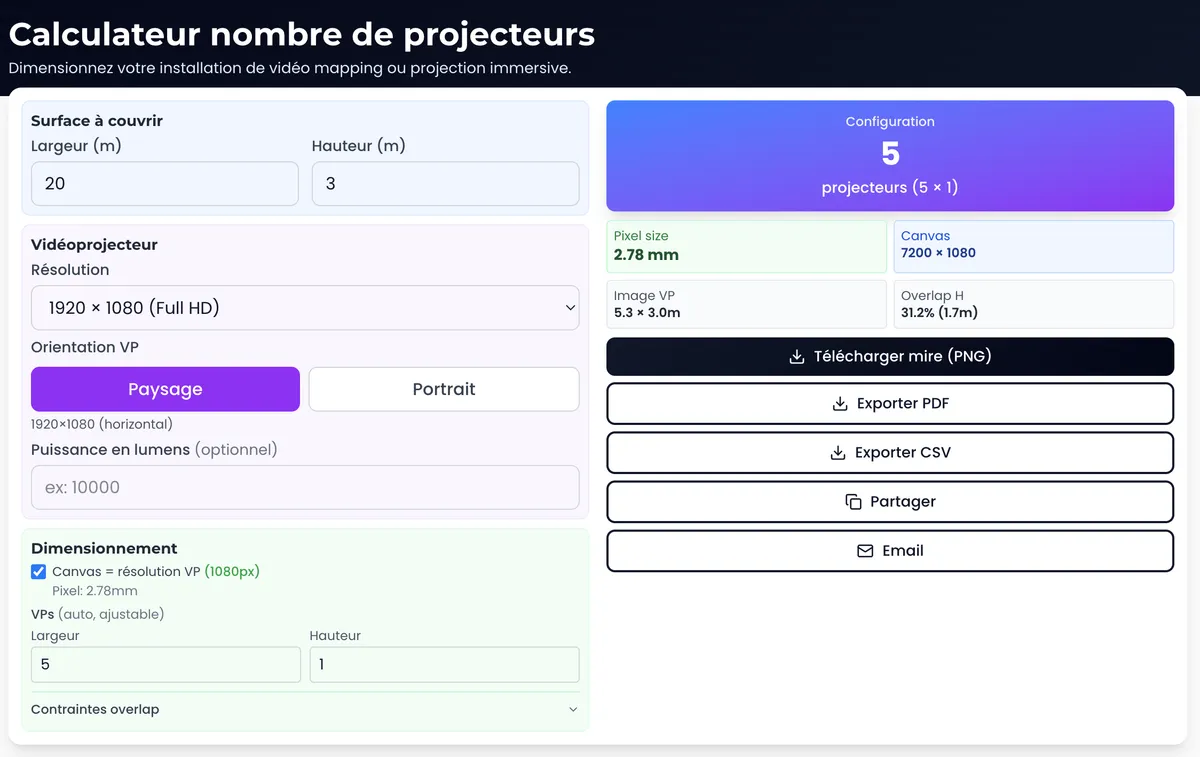
Tool: Use the projection calculator to determine throw ratio, image size, and required lumens.
2. Photo survey
You photograph the projection surface from each projector position. These photos serve as a basis for:
- Creating calibration test patterns
- Giving the studios a visual reference
- Preparing the warping on site
Tip: Take the photos at night, under actual show conditions. This avoids unpleasant surprises.
3. Creating 2D test patterns
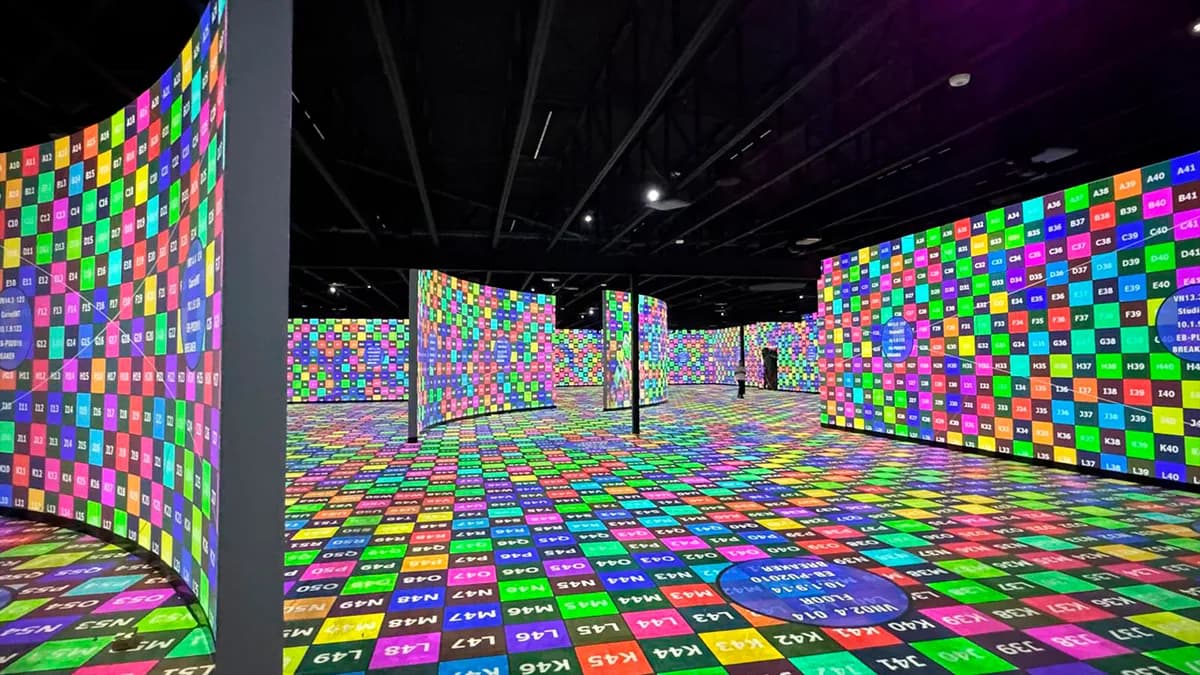
From the photos, you create calibration test patterns: outlines, reference points, grids. These patterns are used:
- By the studios to align their content with the actual geometry
- On site for quick warping
Tool: The multi-projector calculator automatically generates pixel-perfect test patterns with grids and reference markers.
4. Studio workflow: 2D creation then rendering
The studios receive the test patterns and create their content in 2D (After Effects, Photoshop, etc.). But often, for aesthetic reasons, they model the facade in 3D to animate volumetric elements.
Important: Even if the studios create in 3D internally, they deliver a flattened 2D media, ready to project. This 2D media is what the media server will play back.
5. On-site calibration
On the day, you warp using the prepared test patterns. If the facade is relatively flat, it goes quickly.
Advantages of the 2D workflow
- Fast: no scan, no modeling
- Economical: less preparation time
- Accessible: no advanced 3D skills needed
- Sufficient for many projects (flat facades, one-off events)
Limitations of the 2D workflow
- Limited precision on surfaces with relief
- Manual warping takes longer on site if the geometry is complex
- Studios work "blind" without a precise 3D model
- Difficult to perform accurate photometric studies
3D Workflow: The Professional Method
When to use the 3D workflow?
Typical use cases:
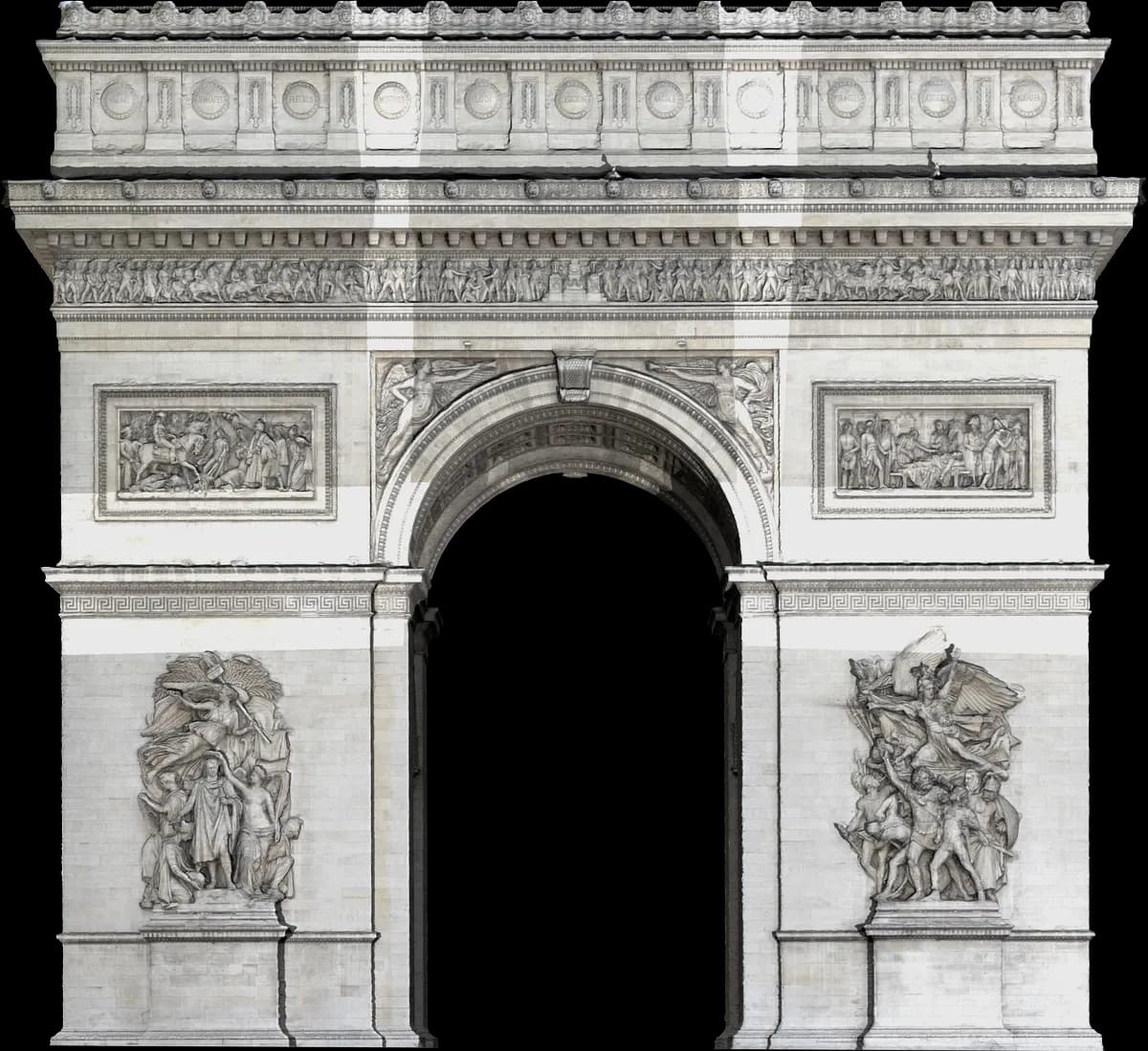
- Surface with relief (historic facade, complex architecture, sculpture)
- Permanent installation where precision matters
- Budget allows investing in preparation
- Need for positioning studies in a 3D environment
The idea: You create a precise 3D model of the surface, import it into Modulo Kinetic for your studies, and deliver a complete toolkit to the studios.
The steps of the 3D workflow
1. Framing and preliminary study
Same logic as the 2D workflow: where to project, how many projectors, what distances.
But additionally, you plan the modeling: is a scan necessary? Photogrammetry? Or manual modeling?
2. 3D scan or photogrammetry
To obtain precise geometry, you have two options:
3D scan (LiDAR or laser scanner):
- Very high precision (millimeter-accurate)
- Captures architectural details (cornices, sculptures, reliefs)
- Costly in time and equipment
Photogrammetry:
- Less expensive (just a camera and software)
- Good precision if executed well
- Result: point cloud then 3D mesh
Result: A "raw" 3D model (high poly), very detailed, but often too heavy to use as-is.
3. Retopology: creating a low poly model
The raw scan contains millions of polygons. Impossible to use in real time in a media server.
The retopology step consists of:
- Recreating an optimized mesh (low poly) on top of the scan
- Keeping important details, removing the superfluous
- Obtaining a lightweight, usable model
Why this matters:
- The low poly model can be imported into Modulo Kinetic for studies
- It can also be used directly in a real-time 3D engine (for generative content)
- Studios can work with it to create their 3D animations
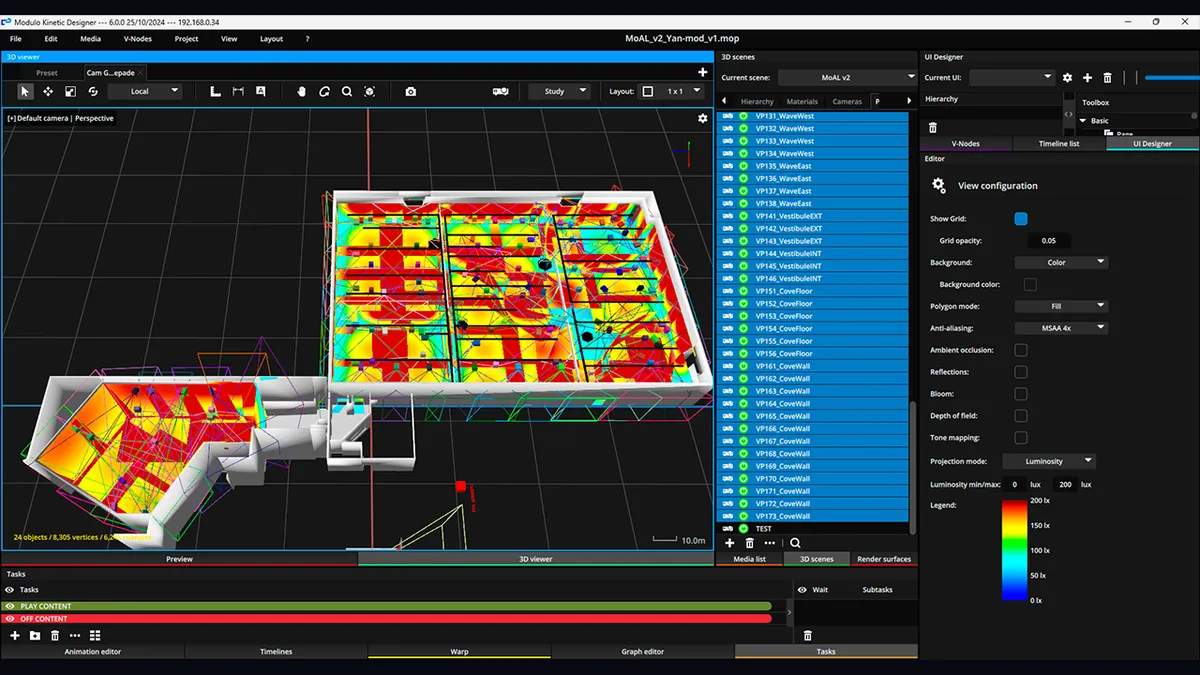
4. Import into Modulo Kinetic: projection studies
Once the low poly model is ready, you import it into Modulo Kinetic.
What this enables:
- Position projectors in 3D space with millimeter precision
- Test different configurations (distances, lenses, overlaps)
- Run photometric studies: are 10,000 lumens enough? Do you need more?
- Choose the right lenses by visualizing the actual render
This is an enormous time saver: you validate everything upfront, with no surprises on site.
5. UV unwrap: creating 2D patterns
Even if you have a 3D model, studios often work in 2D. So you need to "unwrap" the 3D model into 2D, known as UV mapping.
Result: 2D patterns (flat images) that, once applied to the 3D model and projected, align perfectly with the actual geometry.
These patterns are delivered to the studios along with the 3D model.
6. Delivering the turnkey toolkit
You deliver to the studios:
- The low poly 3D model (for 3D animation if needed)
- The 2D patterns (UV unwraps)
- Calibration test patterns
- Projector configuration (positions, resolutions, overlaps)
The studios have everything they need to work with precision.
7. On-site calibration (with autocalibration option)
Two options:
Manual calibration: You warp by targeting reference points on the 3D model imported into Modulo Kinetic. Precise, but time-consuming.
3D autocalibration: If you have the budget and equipment (cameras, dongles), Modulo Kinetic can perform automatic projector calibration. Massive time savings.
Note: 3D autocalibration will be covered in a dedicated article (manual and automatic calibration).
Advantages of the 3D workflow
- Maximum precision: the model reflects reality to the millimeter
- Upfront studies: technical choices validated before arriving on site
- Complete toolkit for studios: they work with precise references
- Time savings on site with autocalibration
- Superior final quality on complex surfaces
Limitations of the 3D workflow
- Preparation time: scan, retopology, UV mapping
- Cost: equipment, 3D skills, software licenses
- Requires advanced skills in 3D and media server operation
Comparison Table: 2D vs 3D
| Criterion | 2D Workflow | 3D Workflow |
|---|---|---|
| Surface | Flat or minimal relief | Relief, complex architecture |
| Preparation time | Short (a few days) | Long (1-2 weeks) |
| Precision | Good on flat surfaces | Excellent |
| Studio toolkit | Photos + 2D test patterns | 3D model + UV + test patterns |
| On-site calibration | Manual warping | Manual or 3D autocalibration |
| Required tools | Camera, 2D software | Scanner/photogrammetry, 3D software, Modulo Kinetic |
2D autocalibration: when the machine aligns for you
On some surfaces, the manual warping of the 2D workflow can be replaced by 2D autocalibration (a Modulo Player and Modulo Kinetic feature): a PoE camera watches the surface, the system projects patterns, and the software computes the warping and blending of every projector in minutes. Modulo Player caps it at 6 outputs per server; Kinetic has no limit.
It works on smooth, continuous surfaces the camera can see in full: domes and planetariums (the king use case), flat walls with edge blending, cylindrical screens, stacked projectors.
It does not work as soon as there is relief (a facade with cornices, recessed windows, sculptures), light pollution drowning the patterns, or a camera that cannot see the whole projected area. In those cases: manual warping, or 3D autocalibration (a precise 3D model and 2 cameras per projector).
On a recurring show or a permanent installation realigned at every maintenance, autocalibration saves hours every time. The per-output license dongle pays for itself quickly.
How to Choose?
Ask yourself these questions:
1. Does the surface have significant relief?
- No (flat facade, smooth wall) -> 2D workflow is sufficient
- Yes (recessed windows, cornices, sculptures) -> 3D workflow recommended
2. Is this a permanent installation or a one-off event?
- One-off -> 2D workflow is often sufficient
- Permanent -> 3D workflow guarantees quality and longevity
3. Do you need to validate projector positions upfront?
- No (flexibility on site) -> 2D workflow
- Yes (strict constraints, client validation) -> 3D workflow with Modulo Kinetic
4. Do the studios need a precise 3D model?
- No (simple 2D content) -> 2D workflow
- Yes (complex 3D animations) -> 3D workflow
Conclusion
There is no "best" workflow. There is the workflow suited to your project.
The 2D workflow means efficiency and speed. The 3D workflow means precision and total control.
Take the time to properly scope your project upfront. Evaluate the stakes, budget, and complexity. Then choose the method that makes sense.
Need help defining the right workflow for your project?
📖 The full method: Projector calibration: the field guide covers the process step by step, from test patterns to edge blending.
Need support for your project?
Let's talk about your project to discuss your projection or mapping project.
Ready to size your installation? Use our free tools:
- Projection calculator: throw ratio, lumens, pixel size
- Multi-projector calculator: full sizing + test pattern exports
- Lumeo, AV previz software in the browser: full 3D simulation when the project justifies it

Video mapping consultant and trainer
Fifteen years of monumental and museum-grade installations: Arc de Triomphe (7 editions), Museum of Art and Light Kansas (108 projectors), Atelier des Lumières. Design, multi-projector calibration, audit, Modulo Kinetic training.
Need technical expertise?
Let's discuss your video projection or mapping project. Reply within 48h business hours.
Discuss your projectDid you enjoy this article?
Receive my upcoming tips, field experience and best practices straight to your inbox.
By subscribing, you agree to receive our emails. You can unsubscribe at any time.
1 email per week maximum, unsubscribe in 1 click