Projection Resolution: How to Calculate Projected Pixel Size


Projection Resolution: How to Calculate Projected Pixel Size
In short. Projected pixel size is the parameter that determines the perceived sharpness of a projection. Formula: pixel size equals projected image width divided by horizontal projector resolution. A Full HD (1920 px) covering 10 m wide produces 5.2 mm pixels, a 4K (3840 px) on the same surface produces 2.6 mm pixels. Pixel size determines the minimum distance at which the eye no longer distinguishes individual pixels, around 3,500 times the pixel size. At 5.2 mm, the image is sharp from 18 m, at 2.6 mm from 9 m. For an indoor project where the audience passes within 2 to 3 m of the projection, aim for 1 to 2 mm of pixel; in outdoor monumental where the audience is 30 m away, 5 to 10 mm is enough. Resolution alone tells you nothing: it is pixel size relative to viewing distance that counts.
Introduction
Projected pixel size is the parameter that determines whether your image will be sharp or pixelated. It is also one of the most misunderstood concepts in projection.
Many professionals think in terms of "resolution": Full HD, 4K, WUXGA. But resolution alone says nothing about perceived quality. A 4K projector covering 20 metres wide will have larger pixels than a Full HD unit covering 5 metres. Resolution only becomes meaningful when related to image size.
In 15 years of projects, I have seen clients invest in 4K when Full HD would have been more than enough, and others project in Full HD on surfaces that were too large, with disappointing results. In both cases, the problem is the same: nobody calculated the projected pixel size.
This article provides the formula, worked examples, and practical rules for sizing correctly.
What Is Projected Pixel Size?
Definition
Projected pixel size (sometimes called "projected pixel pitch") is the physical dimension of one pixel on the projection surface. It is expressed in millimetres per pixel (mm/px).
It is the distance between the centres of two adjacent pixels, measured on the projection surface.
Practical examples:
- 2 mm/px: each pixel is 2 mm across on the wall. The image is very sharp up close
- 5 mm/px: each pixel is 5 mm. Acceptable at medium distance
- 10 mm/px: each pixel is 1 cm. Visible up close, acceptable only at a long viewing distance
Why This Is the Parameter That Matters
Projected pixel size determines three things:
1. Perceived quality for the viewer
If the viewer is close enough to distinguish individual pixels, the image appears pixelated. Immersion is broken. This is the typical case of an immersive museum mapping where the audience is 2-3 metres from the surface with 5 mm pixels.
2. Working resolution for content production
Content studios must produce material at the projection canvas resolution. If you have 4 Full HD projectors in a 2x2 grid with 10% overlap, your canvas is approximately 3,456 x 1,944 pixels. The content must be produced at this exact resolution. Producing in 4K "for safety" when the canvas is 3,456 pixels wide is a waste of render time.
3. Visual comfort
Beyond simple pixelation, pixel size affects comfort. Pixels that are too large create a visible grid effect, especially on solid colours and gradients. The viewer perceives the "structure" of the image instead of a continuous surface.
The Calculation Formula
Main formula
Pixel size (mm) = Image width (mm) / Horizontal resolution (px)
Or in metres:
Pixel size (mm) = Image width (m) x 1,000 / Horizontal resolution (px)
Example: A Full HD projector (1,920 px wide) projects an image 5 metres wide.
Pixel size = 5,000 / 1,920 = 2.6 mm/px
This is the physical size of one pixel on the surface.
Worked Examples
Let us look at the most common cases:
Full HD (1920 x 1080):
- 3 m wide image: 3,000 / 1,920 = 1.6 mm/px
- 5 m wide image: 5,000 / 1,920 = 2.6 mm/px
- 10 m wide image: 10,000 / 1,920 = 5.2 mm/px
- 15 m wide image: 15,000 / 1,920 = 7.8 mm/px
4K UHD (3840 x 2160):
- 5 m wide image: 5,000 / 3,840 = 1.3 mm/px
- 10 m wide image: 10,000 / 3,840 = 2.6 mm/px
- 15 m wide image: 15,000 / 3,840 = 3.9 mm/px
- 20 m wide image: 20,000 / 3,840 = 5.2 mm/px
Key observation: A 4K projector on a 10 m wide surface gives the same pixel size as a Full HD on 5 m wide (2.6 mm/px). 4K does not "double" the quality: it allows you to cover a surface twice as wide (and twice as tall, i.e. four times the area) at the same pixel density.
The Case of "4K" Pixel-Shifted Projectors
Many projectors marketed as "4K" are not native 4K. They use a WQXGA panel (2,560 x 1,600) combined with pixel-shifting technology: the panel physically shifts by half a pixel between two successive frames to simulate a higher resolution.
In practice, the difference between content sent at 2,560 x 1,600 and at 3,840 x 2,160 is imperceptible on these projectors. Pixel shifting provides a slight smoothing benefit, but the actual optical resolution remains that of the panel: 2,560 x 1,600.
Consequence for pixel size: For your calculations, use the native panel resolution (2,560 px wide), not the marketing "4K" resolution. This is the resolution that determines the actual pixel size on the surface.
WQXGA "pixel-shifted 4K" (2,560 px wide):
- 5 m wide image: 5,000 / 2,560 = 2.0 mm/px
- 10 m wide image: 10,000 / 2,560 = 3.9 mm/px
- 15 m wide image: 15,000 / 2,560 = 5.9 mm/px
- 20 m wide image: 20,000 / 2,560 = 7.8 mm/px
Compare this to a true native 4K (3,840 px) which gives 2.6 mm/px at 10 m. The difference is significant on large surfaces.
Reference Table: Resolution x Width
| Image width | Full HD (1920 px) | WUXGA (1920 px) | WQXGA shifted (2560 px) | 4K UHD (3840 px) | DCI 4K (4096 px) |
|---|---|---|---|---|---|
| 3 m | 1.6 mm | 1.6 mm | 1.2 mm | 0.8 mm | 0.7 mm |
| 5 m | 2.6 mm | 2.6 mm | 2.0 mm | 1.3 mm | 1.2 mm |
| 8 m | 4.2 mm | 4.2 mm | 3.1 mm | 2.1 mm | 2.0 mm |
| 10 m | 5.2 mm | 5.2 mm | 3.9 mm | 2.6 mm | 2.4 mm |
| 15 m | 7.8 mm | 7.8 mm | 5.9 mm | 3.9 mm | 3.7 mm |
| 20 m | 10.4 mm | 10.4 mm | 7.8 mm | 5.2 mm | 4.9 mm |
Note: WUXGA and Full HD have the same horizontal resolution (1920 px). The difference is vertical (1200 vs 1080). The horizontal pixel size is identical.
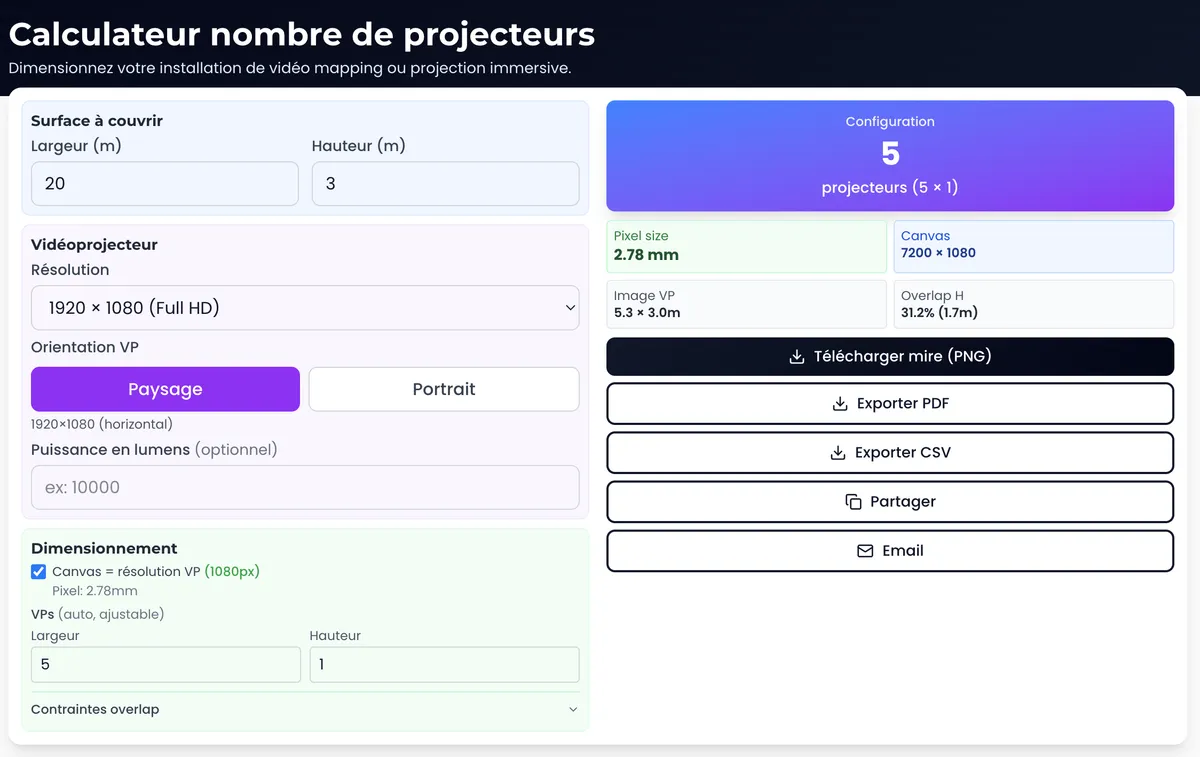
The projection calculator automatically calculates projected pixel size based on your configuration.
Viewer Comfort Distance
The 3x Rule
The field rule I use systematically:
The pixel is invisible if the viewer distance (in metres) is greater than 3 times the pixel size (in millimetres).
In other words: a 3 mm pixel is invisible beyond 9 metres. A 5 mm pixel is invisible beyond 15 metres.
Practical examples:
| Pixel size | Minimum viewer distance | Typical use case |
|---|---|---|
| 1 mm | 3 m | Shop window, close-up display |
| 2 mm | 6 m | Immersive museum, showroom |
| 3 mm | 9 m | Event venue |
| 5 mm | 15 m | Indoor mapping, large venue |
| 8 mm | 24 m | Outdoor mapping |
| 10 mm | 30 m | Monumental mapping |
Note: This rule is an approximation. Visual acuity varies between individuals, and content matters too: fine text will appear pixelated before organic content (fire, water, particles).
Reverse Application: What Pixel Size for What Distance?
If you know the minimum audience distance, you can calculate the maximum acceptable pixel size:
Max pixel size (mm) = Viewer distance (m) / 3
Example: In an immersive museum, the audience is 2 metres from the walls. Max pixel size = 2 / 3 = 0.67 mm/px
This is a very demanding requirement. With a Full HD projector (1,920 px), this gives a maximum image width of 0.67 x 1,920 = 1,286 mm, i.e. 1.3 m. To cover a 10 m wall at this density, you need at least 8 Full HD projectors in a row, or 4 4K projectors.
This is exactly what we see in immersive installations such as Culturespaces: dozens of projectors to maintain a small pixel size despite the audience's proximity.
Impact on Content Production
Working Resolution
The studios' working resolution must match the projection canvas, no more, no less.
Single-projector canvas: This is the projector's native resolution (1920 x 1080, 3840 x 2160, etc.).
Multi-projector canvas: This is the total resolution of the mosaic, accounting for overlaps. If you have 3 Full HD projectors in a row with 10% horizontal overlap:
- Total width = 3 x 1920 - 2 x 192 = 5,376 pixels
- Height = 1,080 pixels
The content must be produced at 5,376 x 1,080 pixels. Not in 4K. Not in 8K "just to be safe." At 5,376 x 1,080.
The multi-projector calculator automatically determines the total canvas resolution accounting for overlaps.
The Over-Resolution Trap
Producing content at a resolution higher than the canvas is wasteful. Render times skyrocket (an 8K render takes 4 times longer than 4K), files are larger, and the final result will be downscaled to the canvas resolution anyway.
Only legitimate exception: Producing at 2x the target resolution for reframing margin in post-production. This is common practice in cinema, but rarely justified in mapping where the framing is fixed.
Multi-Projection: Reducing Pixel Size
The Principle
Multi-projection is the most common way to reduce pixel size on a large surface. Instead of covering 10 m with a single Full HD projector (5.2 mm/px), you use 4 Full HD projectors side by side. Each projector covers approximately 2.5 m, giving 1.3 mm/px (excluding overlap).
The Impact of Overlap
Overlap (the blending zone between projectors) "consumes" pixels. A 10% overlap means that 10% of each projector's resolution is used for blending, not for covering useful surface area.
Worked example: 4 Full HD projectors in a row, 10% overlap:
- Without overlap: 4 x 1920 = 7,680 px across the total width
- With overlap: 4 x 1920 - 3 x 192 = 7,104 effective px
- Loss: 576 px, or 7.5% of total resolution
For a 10 m surface:
- Without overlap: 10,000 / 7,680 = 1.3 mm/px (theoretical)
- With overlap: 10,000 / 7,104 = 1.4 mm/px (actual)
The difference is minimal. Overlap does not significantly degrade pixel size. Never sacrifice it to "gain resolution": a correct blend is more important than a 0.1 mm/px improvement.
For more on edge blending: Edge blending: achieving seamless overlap between projectors
Common Mistakes
1. Using 4K when Full HD is sufficient
A 4K projector costs significantly more than a Full HD. If your audience is at 15 metres and your image is 5 m wide, a Full HD gives 2.6 mm/px, invisible at that distance. 4K brings no perceptible benefit in this case.
Rule: Calculate the required pixel size first (viewer distance / 3). If a Full HD covers it, do not invest in 4K. Put the budget elsewhere (brightness, lenses, content).
2. Forgetting overlap in resolution calculations
On a multi-projector project, the effective resolution is lower than the sum of individual resolutions. If you do not account for overlap in your pixel map, the content studios will produce at the wrong resolution.
3. Confusing projector resolution with content resolution
The projector has a native resolution (1920 x 1080, 3840 x 2160). But if you send 1280 x 720 content to a Full HD projector, the internal scaler will upscale. The result: you have the pixel size of 720p, not 1080p. The resolution that matters is that of the source content, not that of the projector.
4. Ignoring the projection surface
A granular, textured or painted surface absorbs fine detail. Projecting 4K on a rough render wall is a waste: the wall texture masks the detail that 4K is supposed to deliver. The useful resolution is limited by the surface just as much as by the projector.
5. Forgetting projection distance
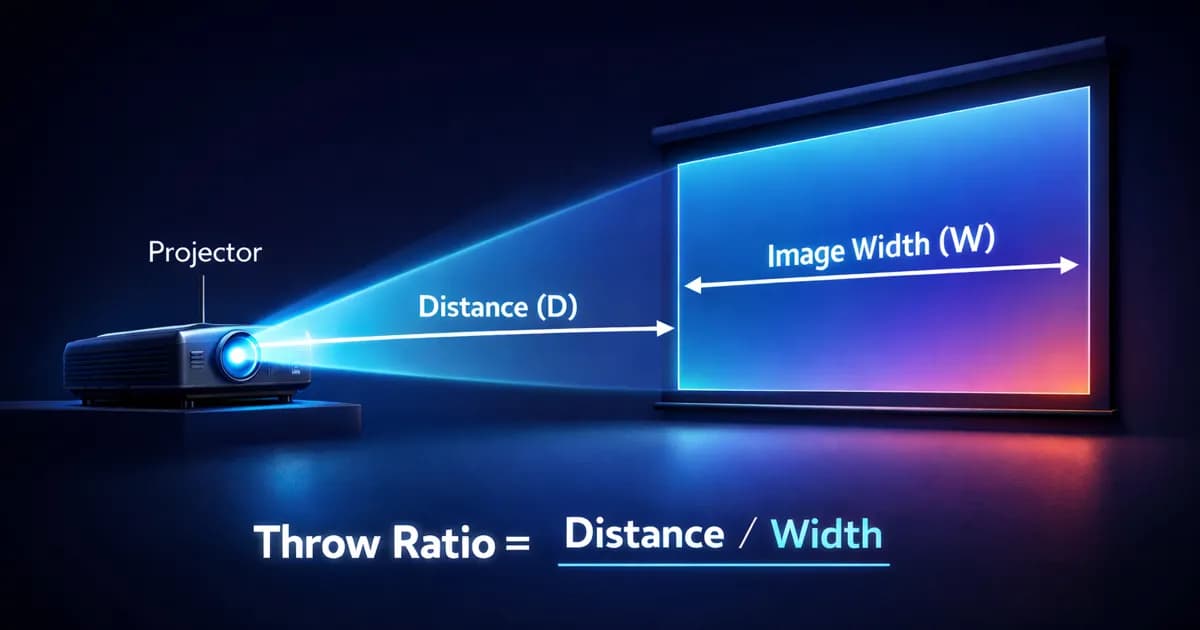
Pixel size does not depend on the distance between the projector and the surface. It depends on the resulting image width. Two projectors at different distances but producing the same image width (thanks to different lenses) will have the same pixel size.
FAQ
Is a native 4K projector always better than Full HD?
No. "Better" depends on the context. If the audience is far away and the surface is small, Full HD is sufficient. 4K is essential when the combination of a large surface and a close audience demands a small pixel that Full HD cannot deliver.
How do you measure pixel size on site?
Project a test pattern with a 1-pixel-spacing grid (checkerboard). Measure the distance between two grid lines on the surface with a tape measure. That is your actual pixel size.
What pixel size for a facade mapping?
The audience is typically 20-50 m away. An acceptable pixel size is 7 to 15 mm. One or two Full HD projectors are enough for facades 10-15 m wide. Beyond that, multi-projection is necessary.
Is pixel size uniform across the entire image?
No. Projection is a conical perspective. Pixels at the edges of the image are slightly larger than those at the centre (distortion effect). With good warping, this variation remains small (< 10%). But with ultra-short-throw lenses, the distortion can exceed 30% between the centre and the edges.
Can you improve pixel size without changing the projector?
Yes, by reducing the image size (zoom or moving the projector closer). But this reduces the covered area. The other option is multi-projection: adding projectors to cover the same surface with more pixels.
Need help sizing your installation?
Pixel size determines the perceived quality, the equipment choice and the content production. Getting it wrong means wasting budget or disappointing the audience.
Let's talk about your project to validate your configuration and determine the optimal resolution.
Calculate it yourself with our free tools:
- Projection calculator: pixel size, throw ratio, lumens/lux
- Multi-projector calculator: canvas resolution, overlaps, test pattern exports
- 3D Simulator Lumeo: visualise your installation in 3D

Video mapping consultant and trainer
Fifteen years of monumental and museum-grade installations: Arc de Triomphe (7 editions), Museum of Art and Light Kansas (108 projectors), Atelier des Lumières. Design, multi-projector calibration, audit, Modulo Kinetic training.
Need technical expertise?
Let's discuss your video projection or mapping project. Reply within 48h business hours.
Discuss your projectDid you enjoy this article?
Receive my upcoming tips, field experience and best practices straight to your inbox.
By subscribing, you agree to receive our emails. You can unsubscribe at any time.
1 email per week maximum, unsubscribe in 1 click