Multi-Projector Calculator: Optimize Your Mapping Installation

Multi-Projector Calculator: Optimize Your Mapping Installation
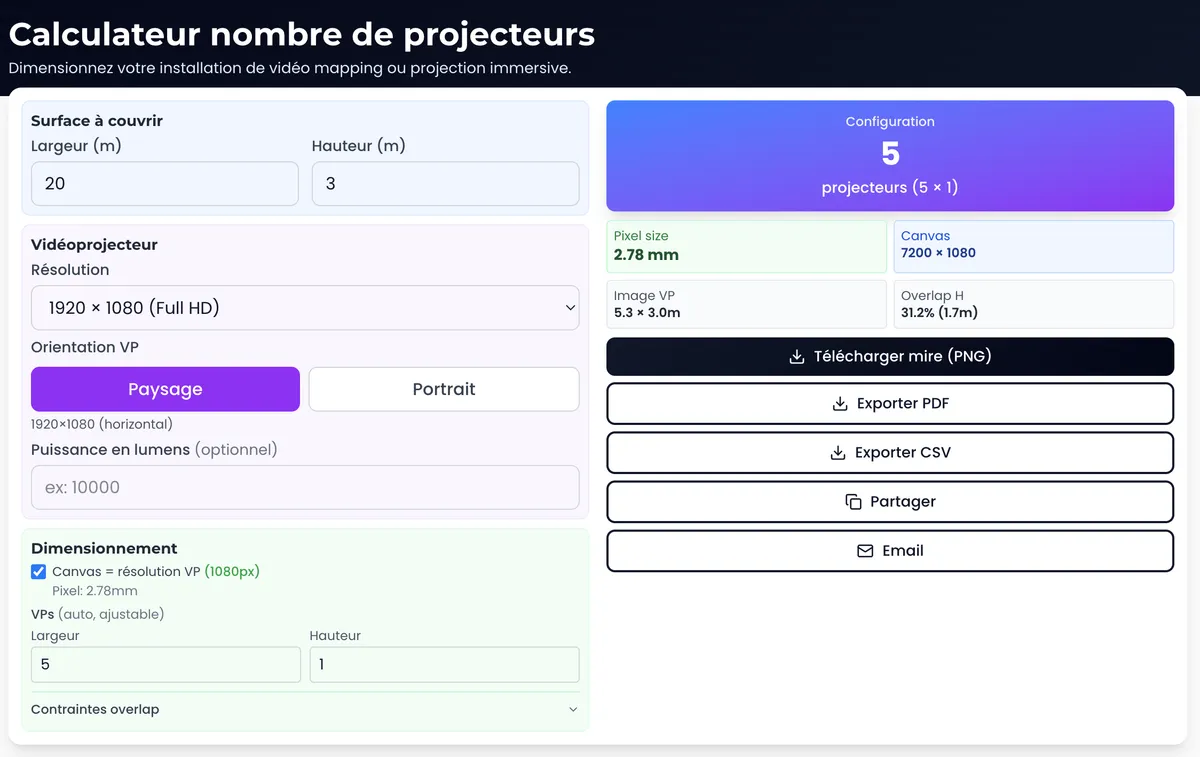
In short. The multi-projector calculator determines the quantity of units required to cover a given surface with the desired pixel density. Input data: surface dimensions, native resolution of the chosen projector, projector position (distance and angle of incidence), target pixel density (in pixels per meter), and overlap rate for edge blending (10 to 25 percent typically). The tool outputs: the number of projectors needed, the total canvas resolution after assembly, the theoretical position of each projector in the grid, and exports calibration test patterns (fullscreen, color chart, alignment grid) ready to load into the media server. A 2D graph visualizes each projector's footprint on the surface, allowing overlap tuning before ordering. The PDF export summarizes the full study for the technical dossier or client quote.
Introduction
When preparing a mapping project on a large surface, one of the first questions that comes up: how many projectors do you need?
Too few, and your resolution will be disappointing. Too many, and you blow the budget. Not to mention the overlap zones to plan for, the total canvas resolution, the exact positions...
For years, I did these calculations by hand. Sometimes in Excel. Sometimes directly in the media server. It was slow, tedious, and error-prone.
The multi-projector calculator automates all of that. And as a bonus, it generates ready-to-use calibration test patterns.
What is this tool for?
The calculator answers a simple question: how many projectors to cover my surface with the desired pixel density?
But it goes further:
- Calculates the total canvas resolution (accounting for overlaps)
- Determines projector positions in space
- Generates ready-to-use exports: PNG test patterns, sizing PDF, position CSV
It's the tool I systematically use during the preparation phase, before even touching the media server.
How it works
Step 1: Define your surface and projectors
Required inputs:
- Surface dimensions to cover (width x height in meters)
- Native projector resolution (e.g. 1920x1200)
- Target pixel size: the projected pixel size you're aiming for (in mm)
- Lumens per projector: to verify light intensity
The calculator automatically determines:
- How many projectors across and down
- The optimal layout (regular grid)
- The necessary overlap zones
Step 2: Overlap configuration
Overlaps (overlap zones between projectors) are essential for a seamless result. The calculator lets you define:
- Horizontal overlap (between side-by-side projectors)
- Vertical overlap (between rows of projectors)
Typically, you aim for 10 to 20% overlap. More if you need very gradual blending.
The calculator displays in real time:
- The number of overlap pixels
- The total canvas resolution (accounting for overlaps)
- The total number of projectors needed
Step 3: Verify coverage and intensity
The calculator displays:
- Total resolution of the canvas (width x height in pixels)
- Actual pixel size projected (to verify consistency)
- Light intensity (lux) to validate it's sufficient
- Actual coverage: percentage of the surface effectively covered
If the lux are too low, you know you need to increase power (or reduce the surface).
Exports: massive time savings
This is where the tool becomes truly powerful.
PNG Export: Calibration test pattern
One click, and you get a pixel-perfect calibration test pattern, ready to import into your media server.
What the test pattern contains:
- Reference grid with subdivisions
- Outlines of each projector (colored rectangles)
- Projector numbers
- Center crosshairs
- Metric dimensions and markers
How to use it: Import this test pattern into your project, assign each rectangle to the correct output, and you have a solid base for warping.
PDF Export: Technical sizing
The generated PDF contains:
- Installation overview
- Precise dimensions of each zone
- Projector positions
- Total resolution and overlaps
- Complete technical information
What it's for: Technical documentation, sharing with teams (studios, installers), client validation.
CSV Export: Projector positions
The CSV file contains, for each projector:
- Number (ID)
- X, Y position in the canvas (in pixels)
- Width, height (in pixels)
- Real-world position (in meters)
What it's for: Import into 3D software (Blender, Modulo Kinetic), automatic configuration generation, scripting.
Advanced configuration
The calculator offers advanced options for specific use cases.
Grid: pixels or metric
You can display the grid in pixels or meters, depending on what's most relevant for your workflow.
Grid origin
By default, the origin (0,0) is at the top left. You can change this to match your 3D software or your conventions.
Colors and styles
Customize the colors of the rectangles, the grid, the text. Useful for adapting test patterns to different projection environments (dark surfaces, light surfaces, etc.).
Real-world use cases
Sizing a permanent installation
You're preparing an immersive installation with projection on 4 walls. You test different configurations:
- 8 x 4K projectors vs 12 x WUXGA projectors
- 15% vs 20% overlaps
- Different projection distances
The calculator gives you all the variants in minutes. You choose the best one based on budget and target quality.
Generating test patterns before even having the media server
Preparation phase: you don't have the server yet, but you want to prepare the test patterns for the studios. You generate the PNG, you send it off. The studios have their working canvas, sized to the exact pixel.
Validating an installation quote
A contractor proposes a configuration. You verify it in the calculator: is the number of projectors consistent? Does the stated resolution hold up? Are the overlaps sufficient?
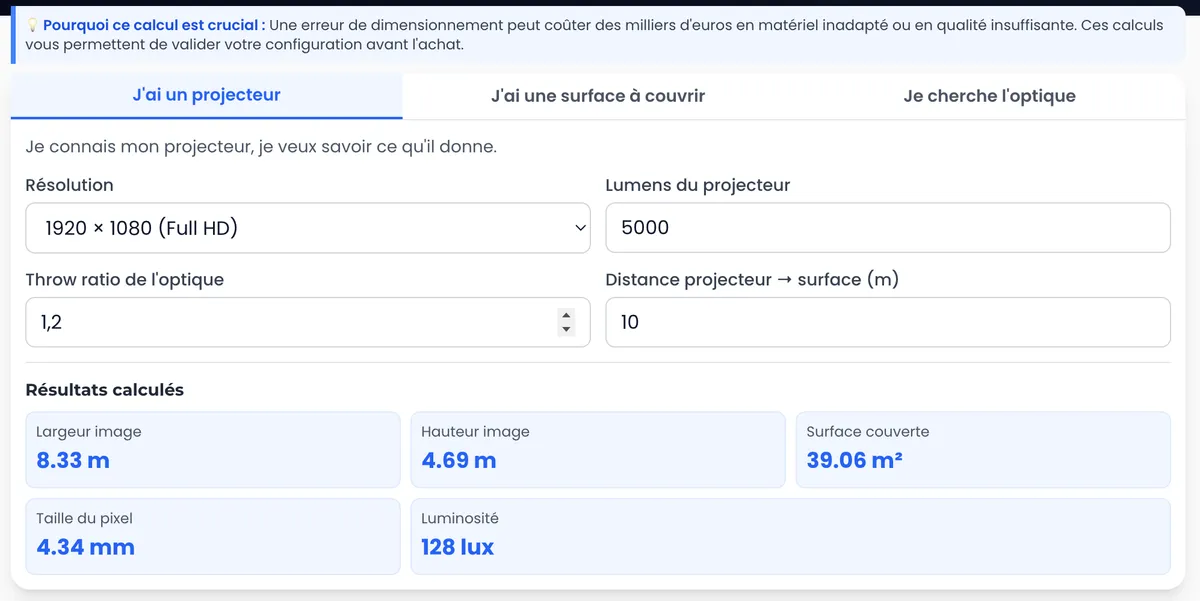
Once the number of projectors is determined, use the projection calculator to fine-tune the choice of each model (throw ratio, lumens, lenses).
Conclusion
The multi-projector calculator saves hours of work on every project.
No more guesswork, no more sizing errors, no more test patterns built by hand in Photoshop.
A tool designed for real working conditions: fast, accurate, ready to use.
Free, no sign-up required, with PNG/PDF/CSV exports included. Try it on your next project.
Need support for your project?
Let's talk about your project to discuss your projection or mapping project.
Need to calculate a projector's specs? Use the projection calculator to determine throw ratio, lumens, and pixel size.
Download the free guide: 10 mistakes that ruin your mapping project (and how to avoid them).

Video mapping consultant and trainer
Fifteen years of monumental and museum-grade installations: Arc de Triomphe (7 editions), Museum of Art and Light Kansas (108 projectors), Atelier des Lumières. Design, multi-projector calibration, audit, Modulo Kinetic training.
Need technical expertise?
Let's discuss your video projection or mapping project. Reply within 48h business hours.
Discuss your projectDid you enjoy this article?
Receive my upcoming tips, field experience and best practices straight to your inbox.
By subscribing, you agree to receive our emails. You can unsubscribe at any time.
1 email per week maximum, unsubscribe in 1 click